Appearance
Deploy Vitepress to Vercel
Assumptions
- You have a Vitepress project
- You have a Vercel account
- You have the Vercel CLI installed
- You've copied the boilerplate Vitepress project (
docs/vitepress-app) todocs/m2-docsdirectory - You've named the copied Vitepress project
m2-docsin thedocs/m2-docs/package.jsonfile
Preparing the Repo and Vitepress Project
To deploy to Vercel we'll need to prepare the repository and the Vitepress project so that it can be deployed to Vercel.
Deploying to Vercel
Create a new Vercel project
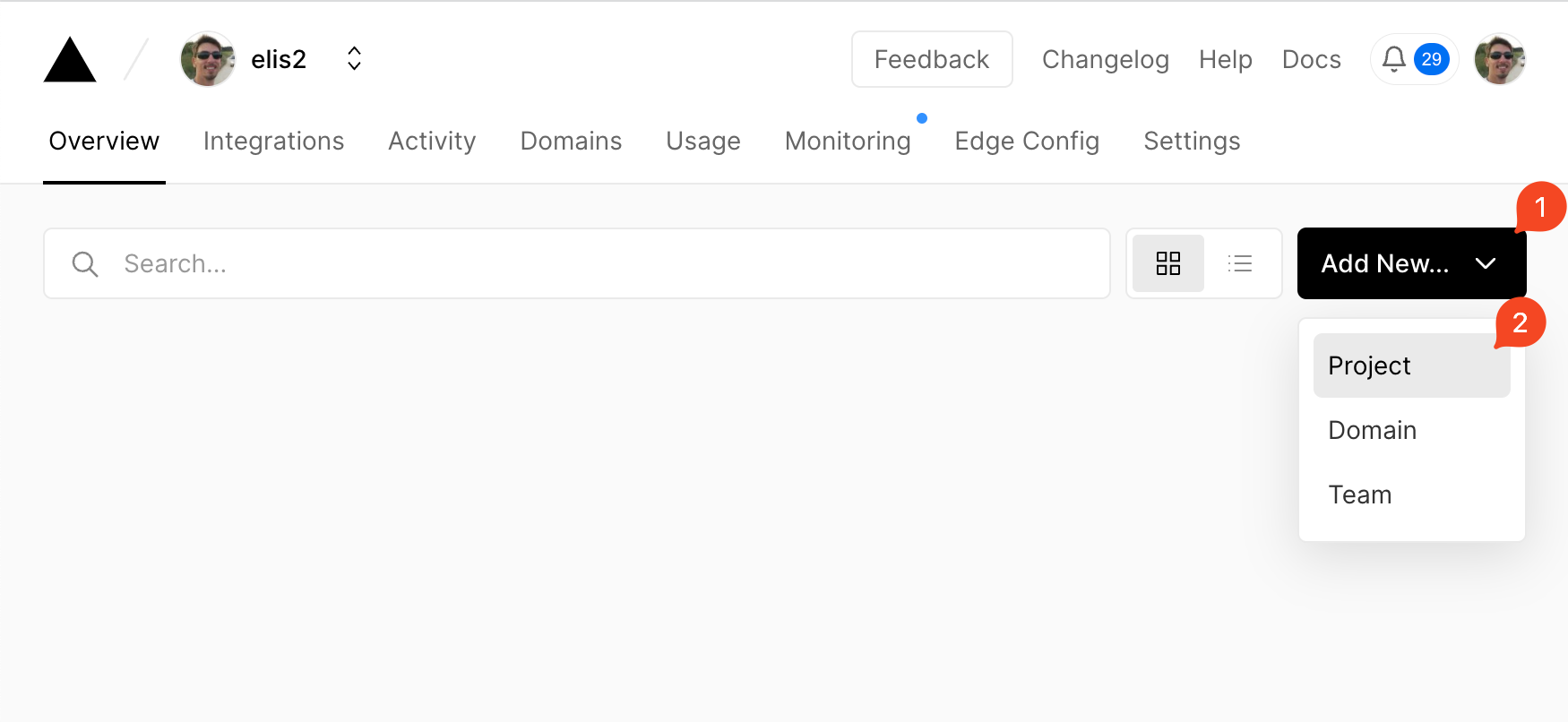
Select the github repository that contains the Vitepress project, and click
Import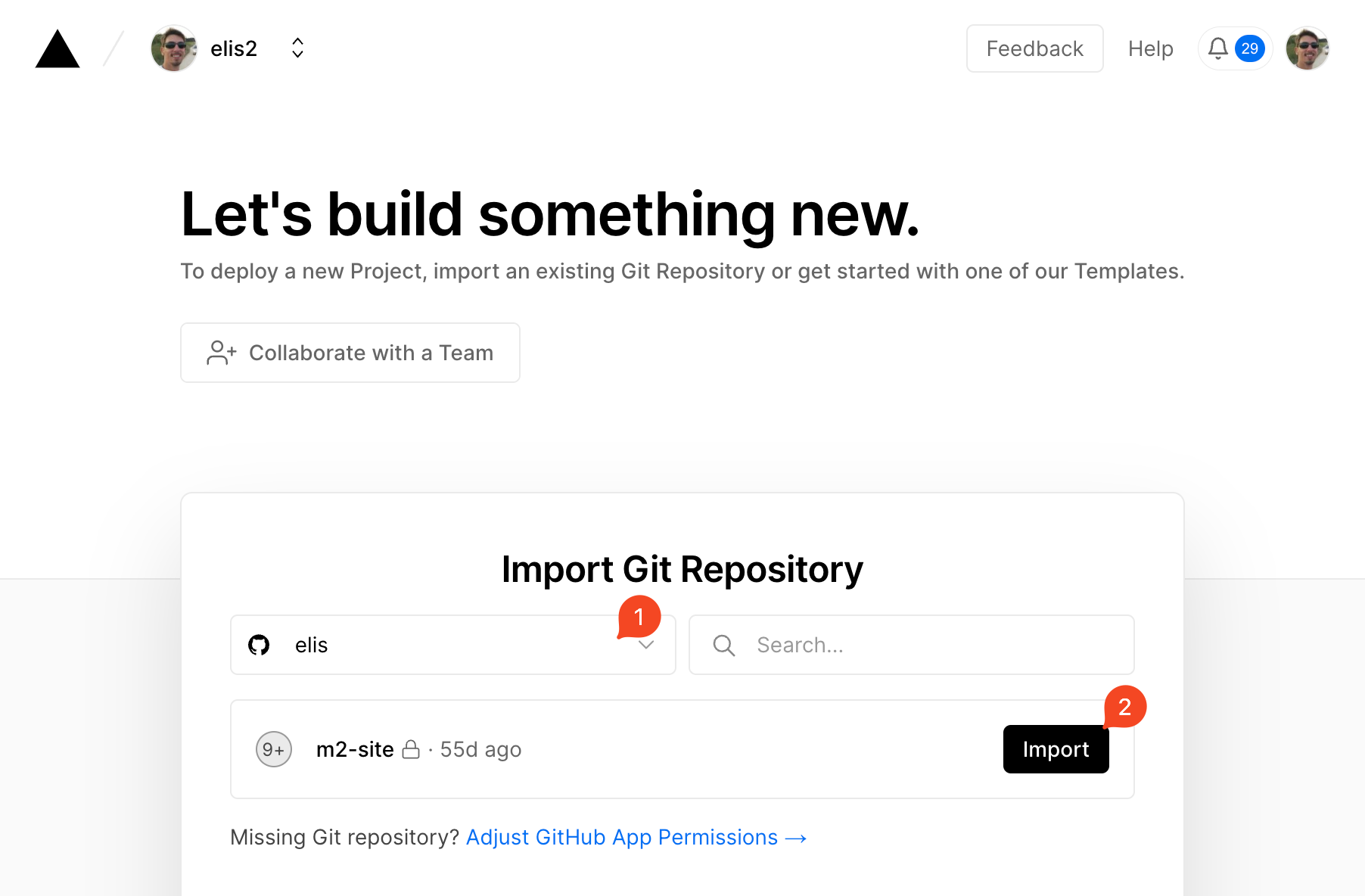
Enter desired project name
In
Framework PresetselectOtherIn "Root Directory" click on
Editand select the root of your projectIn Build and Output Settings
6.1 Change build command to
yarn build --filter=m2-docs...> Note the `...` at the end of the command - this tells Turborepo to build all packages that `m2-docs` depends on!6.2. Change output directory to
docs/m2-docs/dist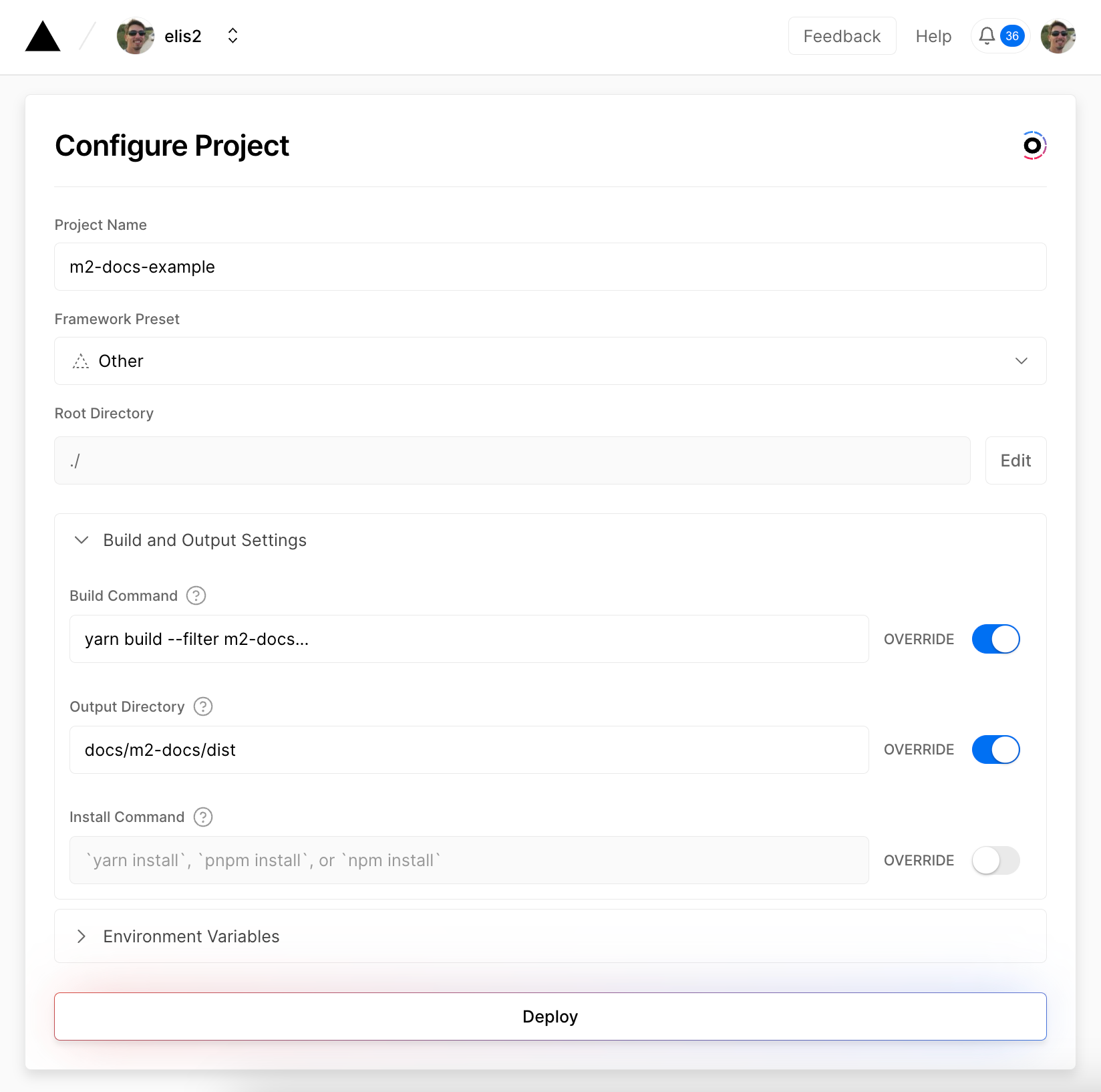
Click
DeployWait for the deployment to FAIL
Note that at this point the deployment will fail. This is expected. We'll need to make a few changes to the VitePress project before it can be deployed to Vercel.
Navigate back to the Vercel dashboard and click on the project that you just created
Click on
SettingstabScroll down to
Node.js Versionand select16.xin the dropdown, and clickSave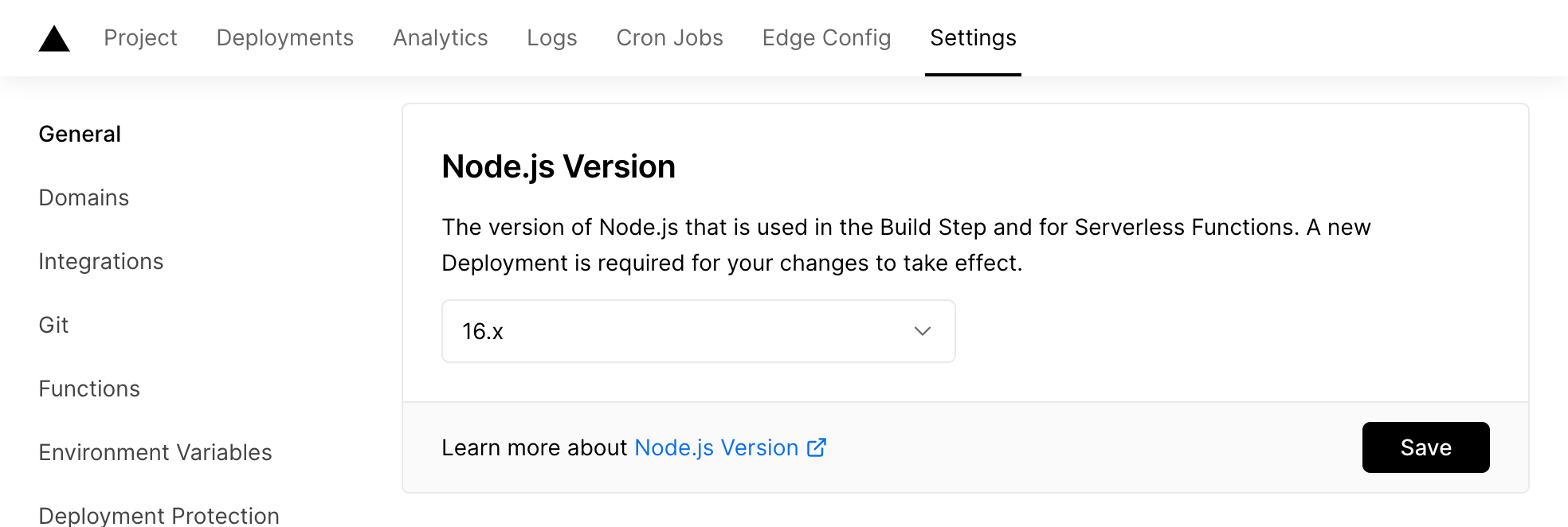
Navigate to
DeploymenttabYou should see a single failed deployment in the
Deploymentssection.Click on the three vertical dots to the right of the failed deployment
 , and click
 Redeploy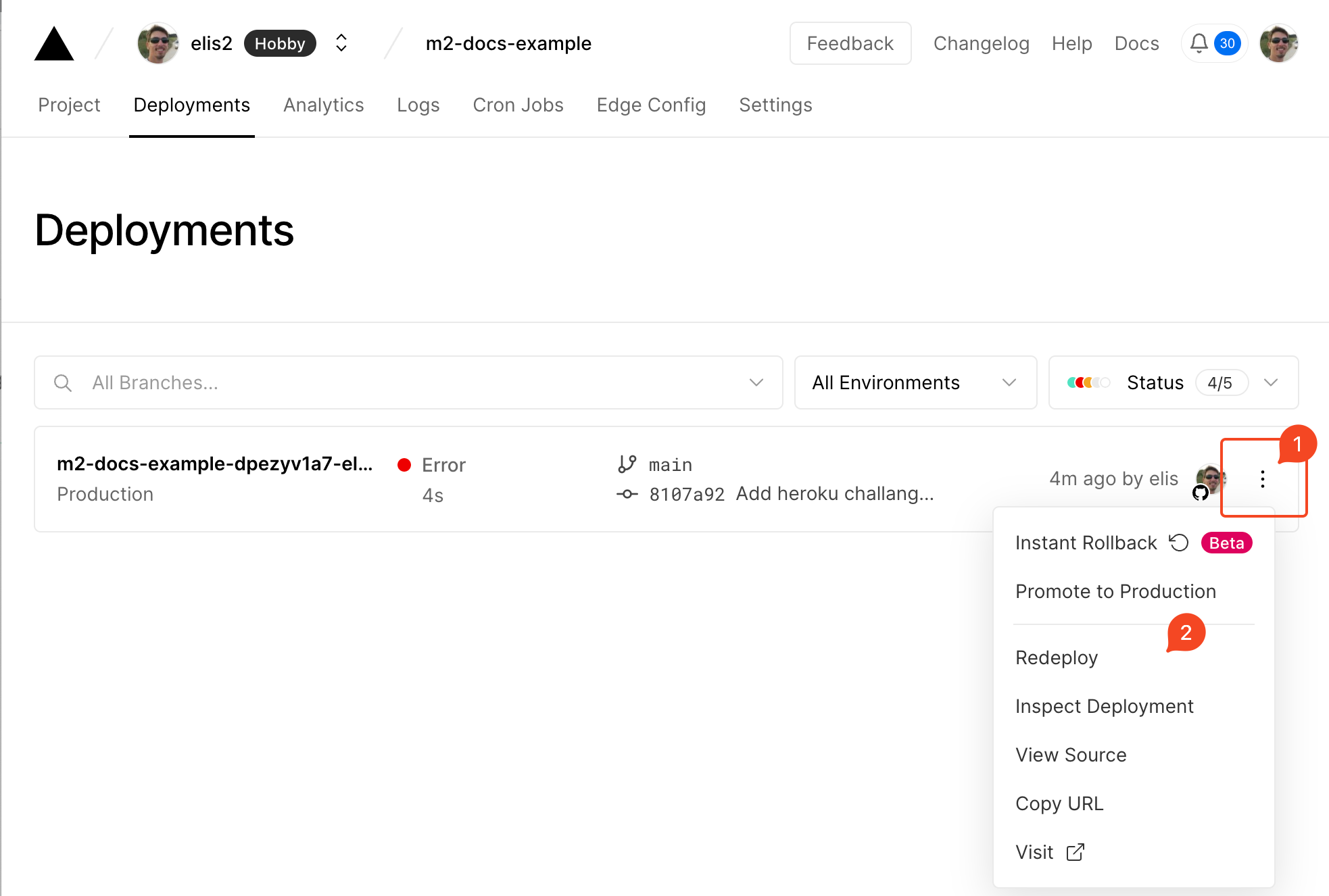
In the
Redeploydialog, clickRedeploy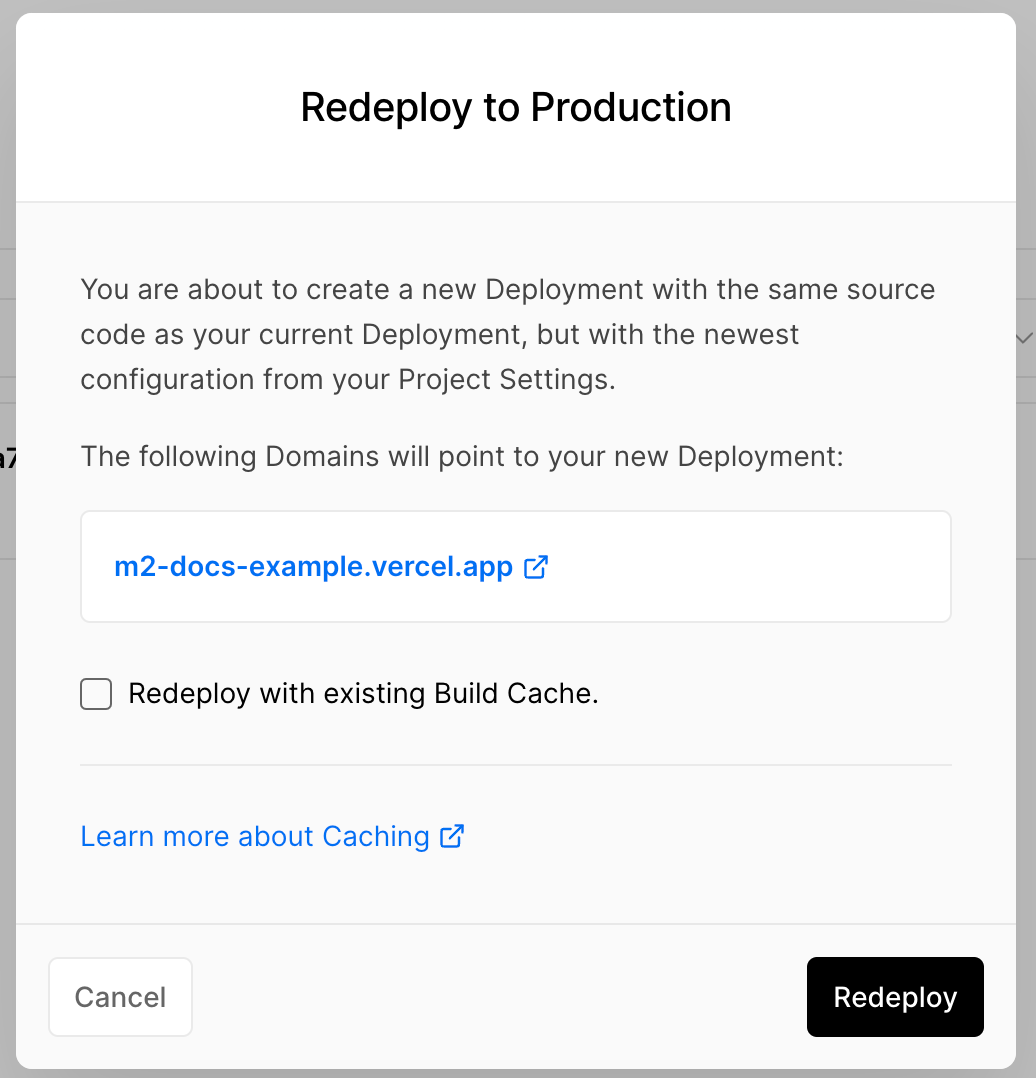
After a few moments the deployment should succeed
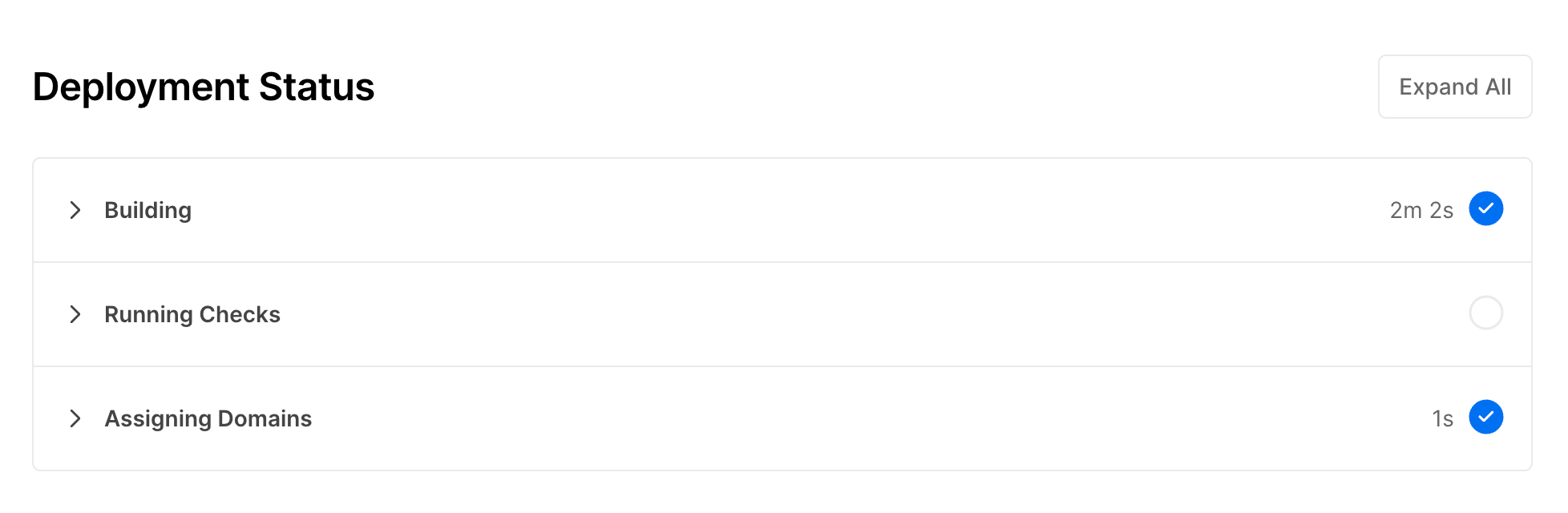
Open up
Assigning Domainssection to see the URL of the deployed Vitepress project.Navigating to the URL should show the VitePress project.
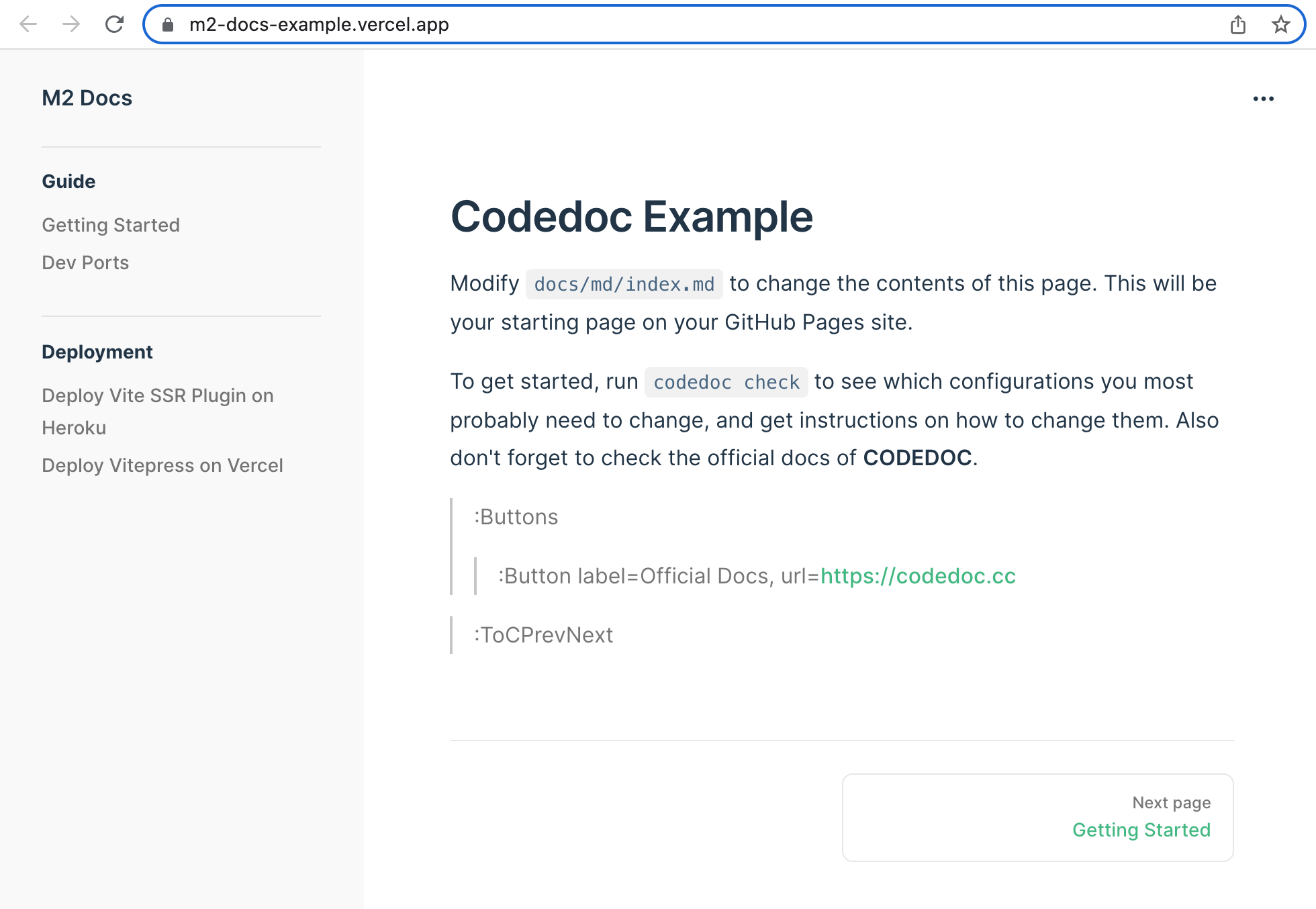
Troubleshooting
Vercel Deployment Fails
If the first time you deploy the VitePress project to Vercel it fails, and you haven't updated to Node.js 16.x, then you'll need to update to Node.js 16.x and redeploy.